




How Do You Get Outside Imaging Into the EHR Without a Manual Order?
Outside imaging can't attach to the EHR without a matching order and accession number, so it often sits unseen in the archive. Medicom's Auto Order Generation reads the study's DICOM metadata and sends an HL7 order or result automatically, so outside studies show up in the chart just like exams performed on site.
Share


Table of contents
Image exchange between organizations has matured quickly. When health systems share a common exchange network, prior studies can move electronically between facilities, often arriving before or alongside the patient. But delivery is only half the job.
Why Doesn't Outside Imaging Show Up in the EHR?
The EHR is order-driven, so a study without a matching order and accession number has nothing to attach to. Clinicians work from the EHR, which means the study can sit in the archive while the chart shows no prior imaging.
That gap matters because exchange reduces waste only when clinicians can see what was exchanged. Research published in the American Journal of Managed Care found patients were significantly less likely to receive repeat imaging when providers accessed a health information exchange. Epic Research reported more than 5.8 million potential duplicative imaging orders prevented in one year. When prior imaging isn't visible where clinicians look, repeat scans follow, bringing extra radiation exposure, delayed diagnoses, and lost capacity.
What Does Good Outside Image Reconciliation Look Like?
A sound outside imaging workflow creates the order at ingestion, reuses data already in the study, and keeps the EHR as the system of record. Whatever tools you use, look for these five traits:
- Reconciles at Ingestion: The order exists before anyone goes looking for the study.
- Uses Data Already in the Study: The DICOM header carries patient name, MRN, study date, and description. Retyping it adds time and risk.
- Keeps the EHR as the System of Record: If the EHR or RIS assigns the accession number, the archive adopts it before storage so all systems agree.
- Screens for Duplicates First: A study that's already archived, matched to an open order, or reprocessed should never trigger a new order.
- Configurable by Interface: Each EHR and RIS expects different messages, and not every source should generate an order.
How Does Auto Order Generation Work?
Medicom's Auto Order Generation builds the order from the study's own DICOM metadata and sends it to your EHR or RIS automatically. It runs alongside your incoming study workflow and builds all five traits in.
When an outside study arrives, through electronic exchange or on disc, and matches a routing rule with order generation turned on for an HL7 V2 destination, Medicom reads the patient name, MRN, study date, and study description. It builds an HL7 V2 message and sends it as a retroactive order or an unsolicited result, depending on what your EHR or RIS expects. The EHR or RIS accepts or creates the order, and the study becomes available in the chart just like an exam performed on site.
If your EHR or RIS assigns a new accession number, Medicom can hold the study until the return message arrives, apply that accession, and then store the study to the archive.
What Do Patients, Providers, and the Enterprise Gain From Automated Orders?
Removing manual order entry gets outside imaging in front of clinicians faster and keeps records cleaner across the enterprise.
- Patients: Outside imaging reaches the chart without waiting on a paperwork step, so the care team sees a fuller clinical picture sooner.
- Providers: Clinicians gain immediate access to complete imaging histories for critical care decisions, and imaging teams stop retyping orders and return their focus to patient care.
- Enterprise: Administrative burden drops, records stay more consistent, and duplicate orders are screened out before they're created.
How Does Auto Order Generation Prevent Duplicate Orders?
It runs duplicate checks before it creates anything, so automation doesn't turn into new cleanup work. Auto Order Generation runs three checks:
- Duplicate Screening: When an external study arrives, the system checks whether it already exists in the archive or in Checkpoint, a Medicom resource where outside studies that need manual review are matched and routed.
- Order Association: If a study already matched an open order during import, the images attach to that order and no new order is generated.
- Checkpoint Reprocessing: If a study fails to store and staff reprocesses it, the system checks for an existing retroactive order and won't send a new one.
Can You Control Which Interfaces Generate Orders?
Yes. No two EHR or RIS interfaces behave the same way, so every setting is scoped to the destination and managed in the Medicom Portal:
- Automatic Generation: Turn order or result generation on or off for external studies on each interface.
- Message Type: Choose order or result to match what your EHR or RIS expects.
- Routing Rules: Pair the interface with routing rules so only the studies and sources you intend trigger generation.
- Accession Management: Turn on the EHR or RIS-assigned accession option so it's applied before archive storage, keeping the EHR, archive, and study aligned.
Outside imaging only helps patients when it lives where clinicians look. Automating the order from incoming DICOM metadata means cleaner data, less administrative strain, and faster access to imaging. Talk with a Medicom expert to see how it fits your EHR or RIS workflow.
Frequently Asked Questions
Why can't outside imaging attach to the EHR without an order?
The EHR is order-driven, so it needs a matching order and accession number to place a study in the patient's chart. Without one, the study can sit in the archive where clinicians never see it.
What is a retroactive order?
A retroactive order is an order created after the exam was already performed, so an outside study has something to attach to in the EHR. Auto Order Generation can send one automatically, or send an unsolicited result instead, depending on what your EHR or RIS expects.
Does Auto Order Generation work for imaging that arrives on disc?
Yes. It works for outside studies that arrive through electronic exchange or on disc, as long as they match a routing rule with order generation turned on.
How does Auto Order Generation avoid creating duplicate orders?
It checks the archive and Checkpoint first, attaches images to any open order already matched during import, and won't send a new order when staff reprocesses a study that already has one.
Which system assigns the accession number?
Your EHR or RIS can stay in charge. When it assigns a new accession number, Medicom holds the study, applies that accession, and then stores it, so the EHR, archive, and study all agree.
More Answers
Answers
How Do You Get Outside Imaging Into the EHR Without a Manual Order?
Outside imaging can't attach to the EHR without a matching order and accession number, so it often sits unseen in the archive. Medicom's Auto Order Generation reads the study's DICOM metadata and sends an HL7 order or result automatically, so outside studies show up in the chart just like exams performed on site.
Answers
Why Don't Hospitals Describe the Same Imaging Exam the Same Way?
Hospitals name the same exam differently because each organization builds its own procedure catalog. Medicom research found two institutions describe the same exam with even one identical string only 9% of the time. Those mismatches cause missing priors and repeat scans, so the fix is technology that reads clinical meaning instead of matching exact text.
Answers
What Is Imaging Exchange Analytics, and Why Does It Matter for Your Budget?
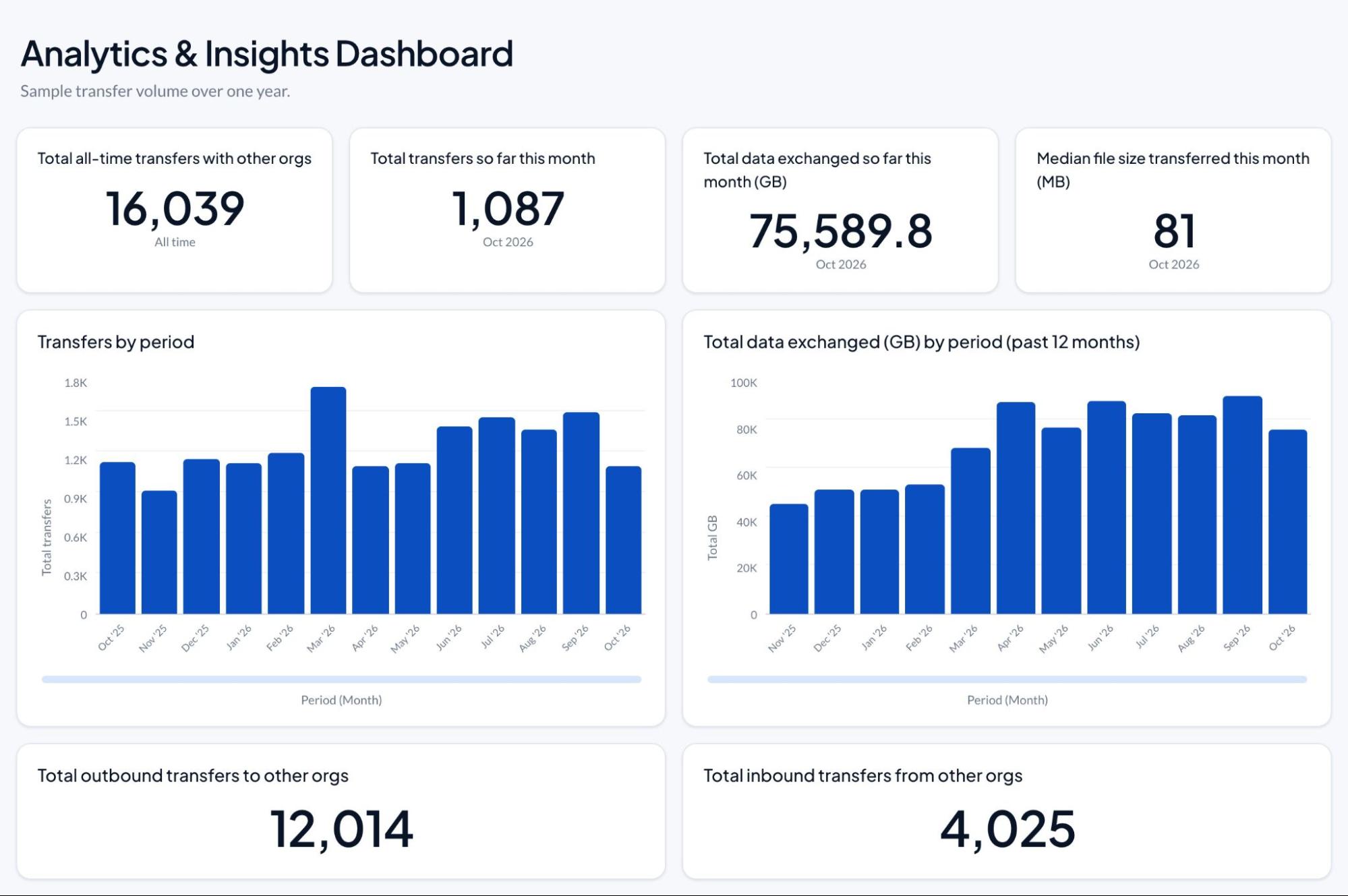
Imaging exchange analytics shows how many studies move in and out of your organization, which partners send them and how your imaging systems are performing. Medicom’s Analytics & Insights gives imaging leaders, exchange managers and IT self-service dashboards for all of it, so budget answers are a click away.
Your Plan for Enterprise Imaging Interoperability
Talk to one of our experts to plan your interoperability strategy, explore workflows, or get a personalized demo. We’re here to help.
